
Every job you finish in Farm Sprayer GPS is saved on the phone, tablet or PC that recorded it. That is fine until the phone goes in the creek, or the agronomist wants to see the map, or you buy a new tablet for the cab. The Farm Sprayer GPS Cloud at fsgpscloud.maconapps.com solves those three problems, and it is free with the app.
What it does
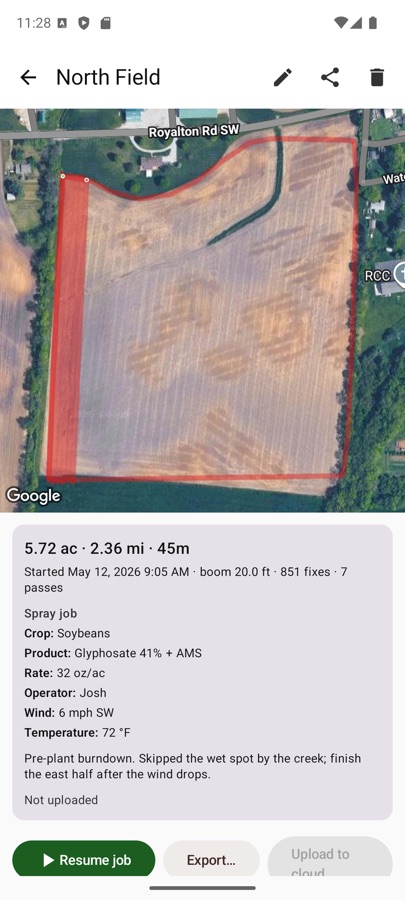
- Backs up finished jobs. Every pass, the boom width, the acres, and the job record: crop, product, rate, operator, wind, temperature and your notes.
- Shows your fields in any browser. Open the site on a laptop and see each job painted over satellite imagery, with the same details the app shows.
- Shares a read-only link. Send a field to a landlord, a co-op or a custom applicator. They see the map and can download it; they cannot change or delete anything. You can revoke the link at any time.
- Restores to a new device. Sign in on the new phone, tap Restore, and every job comes back, including the points, as if it had been recorded there.
- Moves between apps. A job recorded on Android shows up in the iPhone app and the Windows app once you sign in with the same email.
- Exports. KML for Google Earth, GeoJSON for QGIS and most farm software, GPX and CSV, straight from the browser.
How sign-in works (no password)
There is no password to remember. Enter your email, we send a six-digit code, type it in, and that device is signed in. Each device gets its own key, so a lost phone can be removed from the Signed-in devices list without signing out anything else. The code is good for ten minutes and works once.
Nothing leaves the device unless you say so
Backup is off by default. Turn on automatic backup in Settings and finished jobs upload on their own, or leave it off and tap Upload to cloud on a job when you want that one saved. Edits you make later, such as adding notes or fixing the product name, re-upload automatically if backup is on.
If you edit a job's name, notes or details on the website instead, the next Restore brings those edits back to your devices. Edits made on the device always win over older edits in the cloud, so nothing you typed in the cab gets overwritten.
What we store, and what we do not
- The job document: field name, width, start and end time, the GPS points for each pass, and the job record.
- Your email address, so you can sign back in.
- A label for each signed-in device, such as "Pixel 8" or "Shop laptop".
We do not store your password, because there is none. Keys and sign-in codes are kept only as one-way hashes. The server recalculates acres and distance from the points itself, so what you see on the site matches the app.
Getting started
- Finish a job in the app.
- Open Cloud (Android and Windows) or Cloud Sync (iPhone and iPad), enter your email and the code we send.
- Tap Upload on the job, or turn on automatic backup.
- Open fsgpscloud.maconapps.com in a browser and sign in with the same email.
If you ever want everything gone, there is a self-service delete account page that removes the account, its devices and every job.
Questions? support@maconapps.com.